How do I find my hospital’s phone policy without chasing IT all day?
You need to check a rota change, answer a work message or open a clinical app on your phone. The question is simple: are you allowed to use this device for work, and what rules apply? Finding the answer can feel less simple when the policy is buried in an intranet, spread across several documents or described differently by different teams.
Start with your employer’s device policy, not a phone setting or a colleague’s workaround. Then check whether your specific use is approved: bringing a personal device to work is not the same as being authorised to use it for patient or organisational information. Finally, test privacy settings on the actual lock screen. A phone can look secure when it is unlocked and still reveal sensitive information in a notification preview.
This guide gives you a practical route through the search. It uses UK guidance from the Information Commissioner’s Office (ICO) as a reference point, but it does not replace your hospital’s policies, local procedures or advice from your information governance team.
Start with the employer device policy
Search your hospital intranet or staff portal for the policy that governs phones and other devices. The title may vary. Try terms such as employer device policy, “mobile device policy,” “personal device,” “bring your own device,” “BYOD guidance,” “remote access,” “acceptable use” and “mobile working.” Search the policy library as well as the main intranet search; some organisations file these documents under information governance, digital services, cyber security or staff policies.
Look for a current, approved document rather than relying on an old email, a local slide deck or a page that has no owner or review date. Check its version, approval status and date of review. If you find two documents that appear to conflict, note both titles and ask which one is current. Do not assume that the newest-looking page automatically overrides an approved policy.
Read for the decision you need to make
You do not have to read every technology policy from beginning to end before taking the next step. Scan for the sections that answer these questions:
- Can staff use personal phones for any work activity, or only for specified purposes?
- Does the rule differ for patient information, staff information, email, messaging, photographs or clinical systems?
- Which phones, operating systems and security features are supported?
- Is enrolment in a hospital management or security service required?
- Are there rules for screen locks, software updates, lost devices and reporting an incident?
- Who can approve an exception, and how do you request one?
Write down the exact activity you want to do. “Use my phone for work” is too broad to check. “Read a hospital email in the approved app” or “receive a shift alert with no patient details” gives your manager or information governance contact something specific to assess.
Separate permission to own a phone from permission to use it for work
BYOD means “bring your own device.” A hospital may allow staff to bring a personal phone onto its premises while prohibiting work access from that phone. It may allow limited functions but require approved software, device registration, a passcode or other controls. Permission for one activity does not automatically cover another.
For example, a policy may allow staff to use a personal device for a staff directory but require a managed hospital device for clinical applications. It may permit access to work email only through an approved app. It may prohibit saving work files into a personal cloud account. The detail matters.
Check the BYOD guidance for any conditions you would need to accept before enrolment. These could include requirements to keep the operating system up to date, use a strong screen lock, allow security controls, or report a lost device promptly. Some management arrangements can remove work data or restrict access. Ask what the hospital can see or control on a personal phone before you agree to enrol it. Do not assume either that IT can see everything on your device or that work controls affect only work data; get the organisation’s explanation in writing.
Use approved systems for patient and organisational data
The central practical rule is to use only systems approved for the information and task involved. A familiar app is not automatically approved because it is widely used, easy to install or convenient for a team. Approval should come from your organisation through its normal digital, information governance or clinical safety process.
That applies to patient information and to organisational information such as internal documents, staff details, meeting notes and operational messages. Do not move work information into a personal email account, consumer file-sharing service, private messaging group, notes app or photo library as a workaround. A folder labelled “Work” on a personal phone is not, by itself, a security control.
Before using an app or service, check:
- Whether it is named in the employer device policy, app catalogue or approved-systems list.
- Whether the approval covers your particular task and type of information.
- Whether you must sign in through a hospital account or use a managed version of the app.
- Whether the app stores, syncs, backs up or shares data outside the hospital environment.
- What the local procedure says about screenshots, downloads, printing and forwarding.
If an app is not listed, treat its status as unconfirmed rather than deciding for yourself that it is acceptable. Ask for approval before putting patient or organisational data into it. “I can download it” is not the same as “the hospital has approved it.”
Check the ICO guidance in context
The ICO provides UK data protection guidance for organisations and people handling personal information. Its material on working securely is a useful reference for everyday security practices. The ICO also publishes advice on working from home securely, including protecting information when work is done away from the usual workplace.
Use that guidance as a prompt for questions about access, storage, device security and your working environment. It does not tell you which specific phone, app or hospital system your employer has approved. Your organisation remains the place to confirm its own arrangements. If an ICO page moves, search the ICO site for the page title rather than relying on an old bookmark.
Keep entertainment and clinical work separate
Personal phones mix work with ordinary life: music, shopping, social media, photos and personal messaging. Separation helps reduce accidental sharing and makes it easier to follow your employer’s rules. Where your hospital provides a managed work profile or approved work apps, use those arrangements as instructed. Keep work accounts and data in the approved work environment rather than copying information into personal apps for convenience.
Separation is not the same as security. A separate folder does not make an unapproved app safe, and a second email account does not turn a personal service into an approved clinical system. Likewise, using a different screen or home-screen page does not change where an app stores data or what its backups include.
Make the boundary practical:
- Use only approved work apps and accounts for work information.
- Do not copy patient details into personal notes, messages, contacts or calendars.
- Review whether the work app can save files or images to a personal photo library or cloud backup.
- Sign out of work services when required by policy, especially on shared or borrowed devices.
- Keep entertainment notifications and personal content away from screens visible to others during clinical work.
If your employer supports work and personal profiles, ask how to switch between them and what happens if the device is lost or you leave the organisation. Follow the written instructions; do not try to create your own technical separation and assume it meets the policy.
Check lock-screen previews and notification privacy
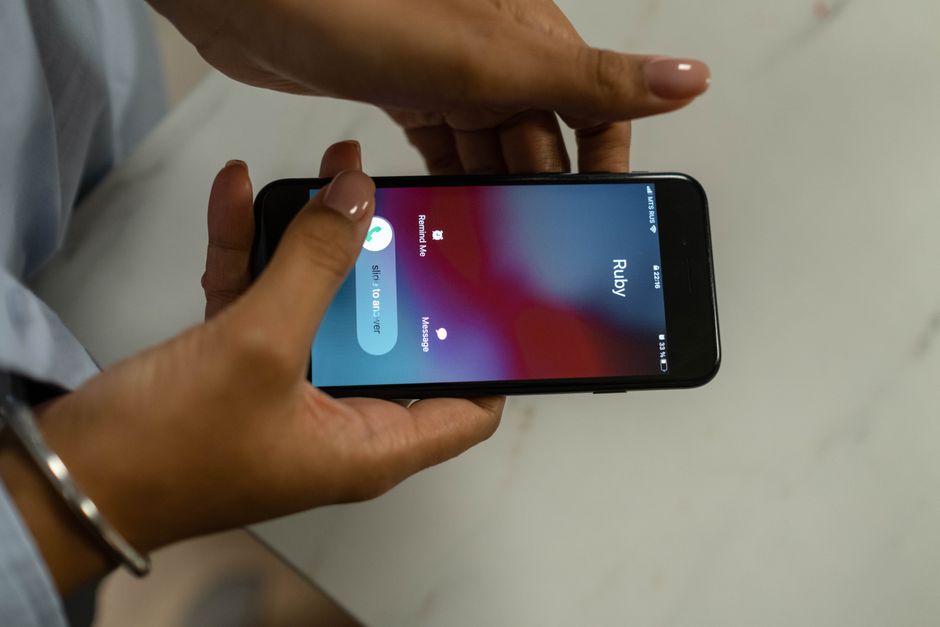
A strong passcode helps, but it does not prevent a message preview appearing on a locked screen. A preview might show a sender, a subject line or part of a message. On a busy ward, a phone left on a desk or carried in a pocket can expose information to someone nearby.
Review notification settings for each approved work app. Depending on your phone and the app, you may be able to hide content while locked, show notifications without message text, or disable lock-screen notifications altogether. Your employer may prescribe a particular setting, so check the policy or app instructions before changing a managed configuration.
Test the setting on the actual lock screen
Do not stop after changing a menu setting. Test what another person could see on your phone while it is locked. Use a harmless test notification, or ask a colleague to send a non-sensitive message through the approved app. Lock the phone, let the notification arrive, and check the screen from a normal viewing distance. Confirm whether any name, subject or message content is visible.
Then test the practical details: does the screen wake when a notification arrives, does content appear after you tap it, and do notification previews behave differently for a work profile? Repeat the check after a major operating-system update or a change to the app. I would not recommend a lock-screen setting without checking it on the actual device; menus do not always predict what the screen displays.
Also consider where you use the phone. A private screen setting cannot prevent someone seeing an unlocked display while you are working in a public area. Lock the device when you put it down, and avoid leaving it where patients, visitors or passers-by can read it.
Find the right person without sending a vague IT request
IT may be able to tell you whether a device or app is supported, but policy approval may sit with another team. Depending on your hospital, the right route could be your line manager, information governance, data protection, cyber security, digital services, clinical safety or the local device administrator. Ask your manager which route applies if the intranet does not make it clear.
To reduce back-and-forth, send a concise question that includes the decision you need:
- Your role or team, without including patient details.
- Your phone type and operating-system version, if device compatibility is relevant.
- The exact work activity you want to carry out.
- The app or system you plan to use.
- The policy or intranet page you have already checked.
- The specific point you cannot resolve, such as whether lock-screen previews must be disabled.
For example: “I have checked the mobile device policy and the approved app list. I need to receive shift updates through [app name] on my personal phone. Is this app approved for that purpose, and are notification previews required to be hidden while the screen is locked?” Do not include patient names, screenshots containing patient details or confidential work information in the request unless the approved process specifically requires it.
A quick comparison: what to verify
Question Where to look What a useful answer looks like Can I use my personal phone for this task? Employer device policy and BYOD guidance A clear rule for the activity, including any conditions or approval route Is this app approved? Approved-systems list, app catalogue or digital team Confirmation that approval covers both the app and the information or task Where can work information be stored? Policy, app instructions and information governance guidance Approved storage and backup arrangements, not a personal account or folder What can appear when my phone is locked? Local policy and notification settings A setting checked on the actual lock screen, including work-app previews What if my phone is lost? Incident-reporting procedure and BYOD guidance A named reporting route and clear instructions on what to do promptlyIf the policy is unclear or missing
Do not fill gaps with assumptions. Keep a note of the policy title, version, link and the question that remains unanswered. Ask your manager to confirm the appropriate policy owner or approval route. If the issue involves patient information, an unapproved app, a possible disclosure or a lost device, use your organisation’s information governance or incident-reporting process promptly rather than waiting for a general IT reply.
Until you have confirmation, avoid putting patient or organisational information into an unapproved service. You can still ask for access to an approved alternative or request that the organisation clarify its guidance. If a process is blocking essential work, raise that operational impact with your manager and the relevant digital or governance team; do not create a shadow system to get around it.
A five-minute policy check
- Search the intranet for “mobile device policy,” “BYOD guidance” and “approved apps.”
- Check that the document is current and identify the policy owner.
- Describe the exact phone activity you want to do, not just “use my phone for work.”
- Confirm that the app and the type of information are approved for that activity.
- Review the work and personal separation rules, including storage and backup.
- Check notification privacy and test the result on the locked device.
- If anything remains unclear, send one specific question to the correct policy owner.
The quickest route is usually not chasing IT with a broad question. It is finding the employer device policy, checking the approved-systems list and asking https://obgynkey.com/keeping-work-and-personal-phone-use-separate-practical-habits-for-healthcare-professionals/ about the exact task you need to perform. That gives you an answer you can act on—and helps keep patient and organisational information inside systems your hospital has approved.